Extracting Audio From MP4 Videos: When to Pick MP3, WAV, or M4R
Need just the audio from a recorded lecture, interview, or music video? Here is how to strip the video track cleanly and pick the right audio format.
Why Extract Audio Instead of Sharing the Full Video?
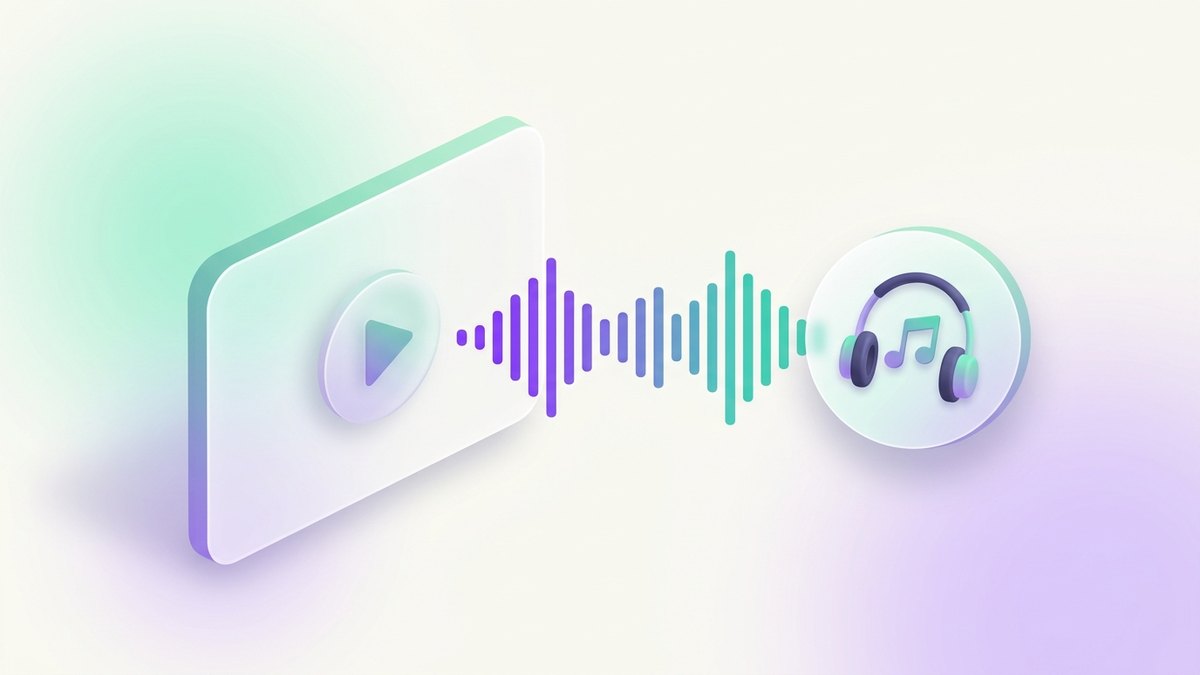
A 45-minute recorded webinar or lecture in 1080p MP4 easily takes hundreds of megabytes. If you only want to listen during a commute, publish a podcast feed, or run a speech-to-text transcriber, all those video frames are dead weight. Extracting only the audio stream keeps the sound crystal-clear while slashing file size dramatically — see the MDN Audio Formats Guide for codec tradeoffs.
| Format | Quality | Typical 10-Min Size | Best For |
|---|---|---|---|
| MP3 (VBR ~190 kbps) | Near-transparent lossy | ~14 MB | Podcasts, voice notes, sharing, phones |
| WAV (16-bit PCM) | Lossless uncompressed | ~100 MB | Audacity/Premiere editing, mastering |
| M4R (AAC, 30 s max) | Efficient lossy | ~0.5 MB | Custom iPhone / iOS ringtones |
Choosing the Right FileZest Audio Tool
Use MP4 to MP3 for everyday listening and podcasts, or MP4 to WAV when feeding audio into editing software. Already have an Apple Voice Memo in .m4a format that a Windows app refuses to open? Convert it in seconds with M4A to MP3.
Want a custom iPhone ringtone? Upload any MP3 to MP3 to M4R — it automatically caps the clip at Apple's strict 30-second limit and encodes it in the iPod AAC container.
Need to change video containers instead (like QuickTime MOV or WebM to MP4)? Check our Video → MP4 and MP4 → WebM converters.
Ready to try it yourself?
Strip video tracks cleanly and export lightweight, high-quality MP3 audio in seconds.