How to Convert a PDF to Word Without Wrecking Your Tables and Layout
Copy-pasting text out of a PDF almost always turns clean tables into soup. Here is why that happens under the hood and how to convert PDFs into genuinely editable Word files.
Why Copy-Pasting From a PDF Always Goes Wrong
Open a contract or invoice in a PDF viewer, drag your mouse over a table, hit Ctrl+C, and paste into Word. Nine times out of ten, every line ends with a hard line break, two-column text interleaves into nonsense, and table cells collapse into a single column.
That happens because the ISO 32000 PDF specification does not store flowing paragraphs the way Word does. Instead, a PDF stores exact X/Y coordinates for every glyph and drawn line on a virtual sheet of paper. Plain copy-paste just grabs raw character streams in whatever order the original exporter wrote them.
How Proper PDF-to-DOCX Conversion Fixes It
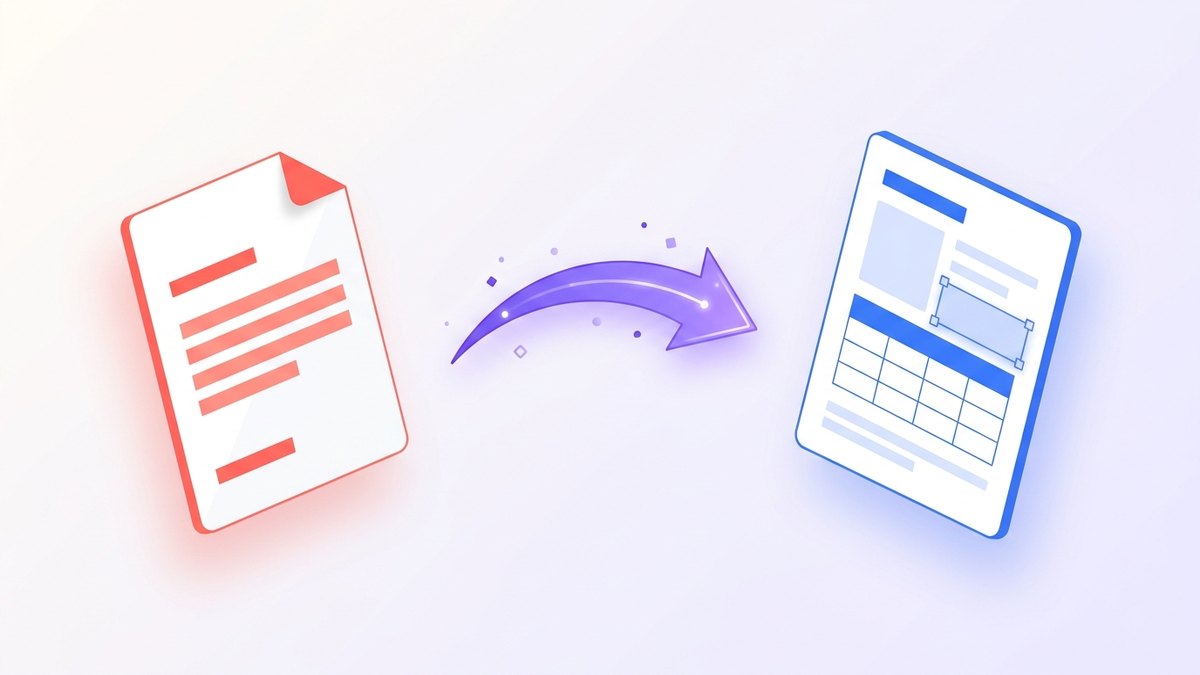
Instead of dumping raw text, FileZest's PDF to DOCX converter inspects the geometry of each page — grouping nearby spans into paragraphs, detecting horizontal and vertical grid lines to rebuild real Word tables, and extracting embedded images at their original positions.
If you only need raw words for a search index, script, or AI prompt without styling overhead, skip Word altogether and run the file through PDF to TXT. Need rows in a spreadsheet instead? Try PDF to XLSX or PDF to CSV.
| What You Need | Best Tool | Why It Works Better |
|---|---|---|
| Edit wording, tables & images | PDF → DOCX | Rebuilds native Word paragraphs, tables, and embedded images |
| Extract raw unformatted text | PDF → TXT | Fastest output with zero styling noise |
| Pull out specific pages first | Split PDF | Isolates only the pages you actually need to revise |
| Lock final layout for clients | DOCX → PDF | Freezes fonts and margins across every OS |
A Quick Workflow That Saves 20 Minutes on Big Reports
When someone sends a 60-page vendor proposal and you only need to revise the 4-page pricing section, converting the entire PDF wastes time and creates a huge Word file. Here is the faster workflow:
- Run the file through Split PDF to pull out only the pages you need to edit.
- Convert just those pages with PDF to DOCX and make your edits in Word or Google Docs.
- Export your revised section back using DOCX to PDF.
- Recombine the original unchanged pages and your updated pages with Merge PDFs.
Pro tip: Before emailing a signed or revised PDF externally, double-check whether it contains sensitive pricing or personal details — you can lock it with a strong password in one click using our Encrypt PDF tool.
Ready to try it yourself?
Turn your PDF into an editable .docx file in seconds — up to 20 MB, deleted automatically after download.